
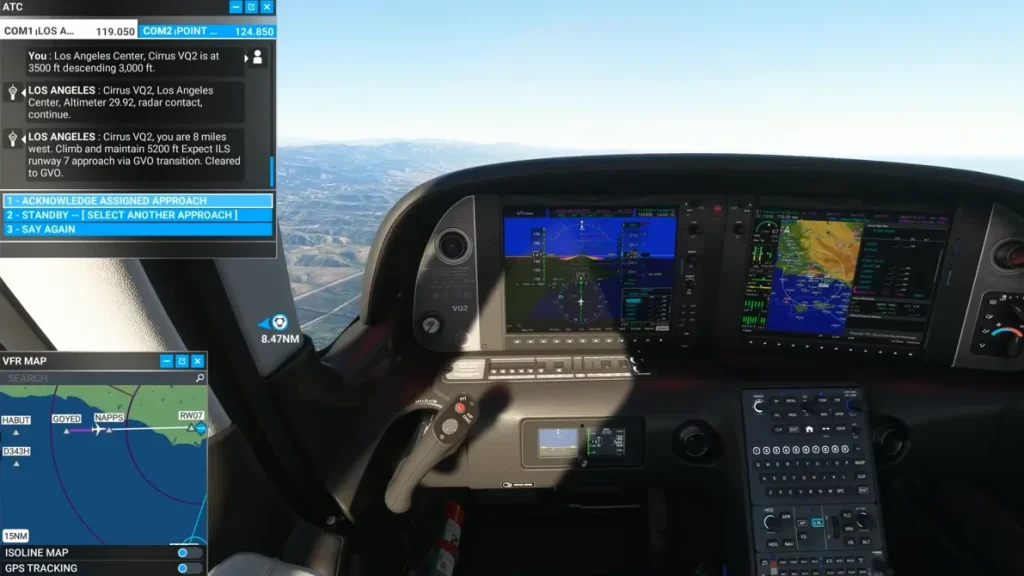

The specifics below are tied to one student’s Cirrus SR22T running in Microsoft Flight Simulator 2020, with a Honeycomb Bravo throttle quadrant and a set of Logitech radio panels. Control bindings, avionics behavior, and engine handling vary by aircraft, hardware, and software version. Treat this as a window into how one instructor approached the problems, not as a setup guide for your own rig. For anything involving real aircraft systems or procedures, your aircraft’s POH and the avionics pilot’s guide are the final word, and published approach charts change over time.
Overview
Walt is a dedicated home simulator pilot who flies a Cirrus SR22T and practices nearly every day. He has built a serious home cockpit setup, including a Honeycomb Bravo throttle quadrant, a set of Logitech radio panels, and a set of toe-brake rudder pedals. His goal in recent sessions has been to get comfortable with instrument procedures in the Cirrus. He also wanted to clean up the long list of small annoyances that pile up in any home setup.
Working with him was Jordan Gottfried (CFI, CFII, MEI), a flight instructor at the Air Force Academy Aeroclub who has been flying simulators since childhood.
The session part hardware and software cleanup, part systems instruction. They covered reversionary mode on the glass cockpit, the reasoning behind control bindings, hardware axis sensitivity, and engine leaning. Then they finished with the reliable way to load and fly an ILS approach into Santa Barbara.
Making the Glass Cockpit Behave
The first item was a red button Walt had been misusing. Pressing it never gave him the moving-map view he wanted. Instead it copied one display onto the other.
The button is the reversionary control, sometimes labeled Display Backup. Its only job is to protect the pilot when a screen fails. If one display dies, the surviving screen picks up the most important instruments. In the real airplane that switch happens automatically, per the Cirrus Perspective Cockpit Reference Guide. The button exists to force it manually if the automatic switch fails, or to test the system on the ground. It does not change what the map shows, and in normal operation there is no reason to touch it.
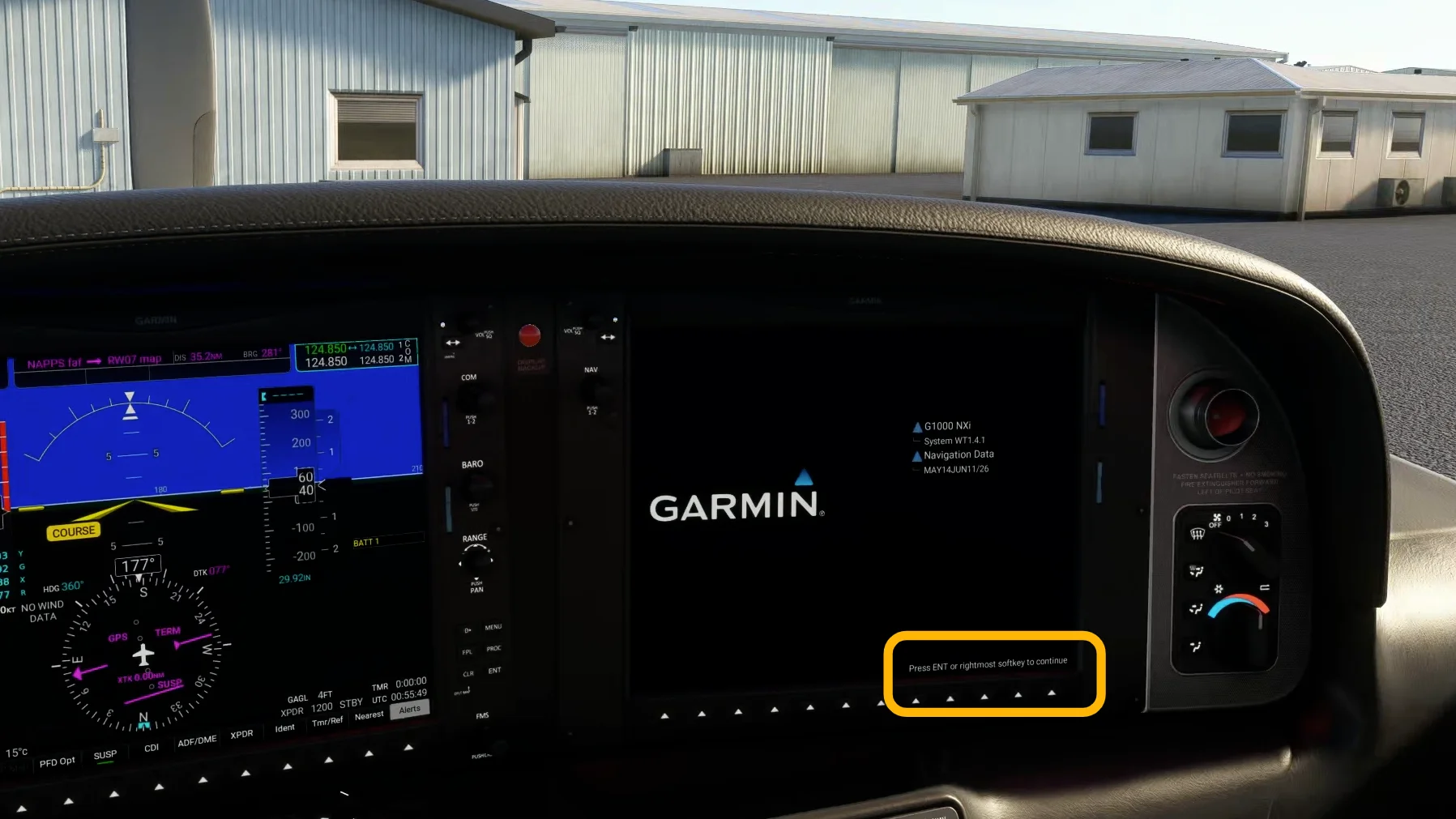
Part of Walt’s confusion came from the startup screen. When the avionics first boot, the display sits on a page that asks the pilot to press Enter or the rightmost soft key to continue. It works much like a computer’s lock screen. Until you clear that page, the display will not show the map.
Jordan’s advice is to read the soft key labels along the bottom of the screen. They tell you what the system is waiting for, whether that is continuing past the boot page or exiting a checklist.
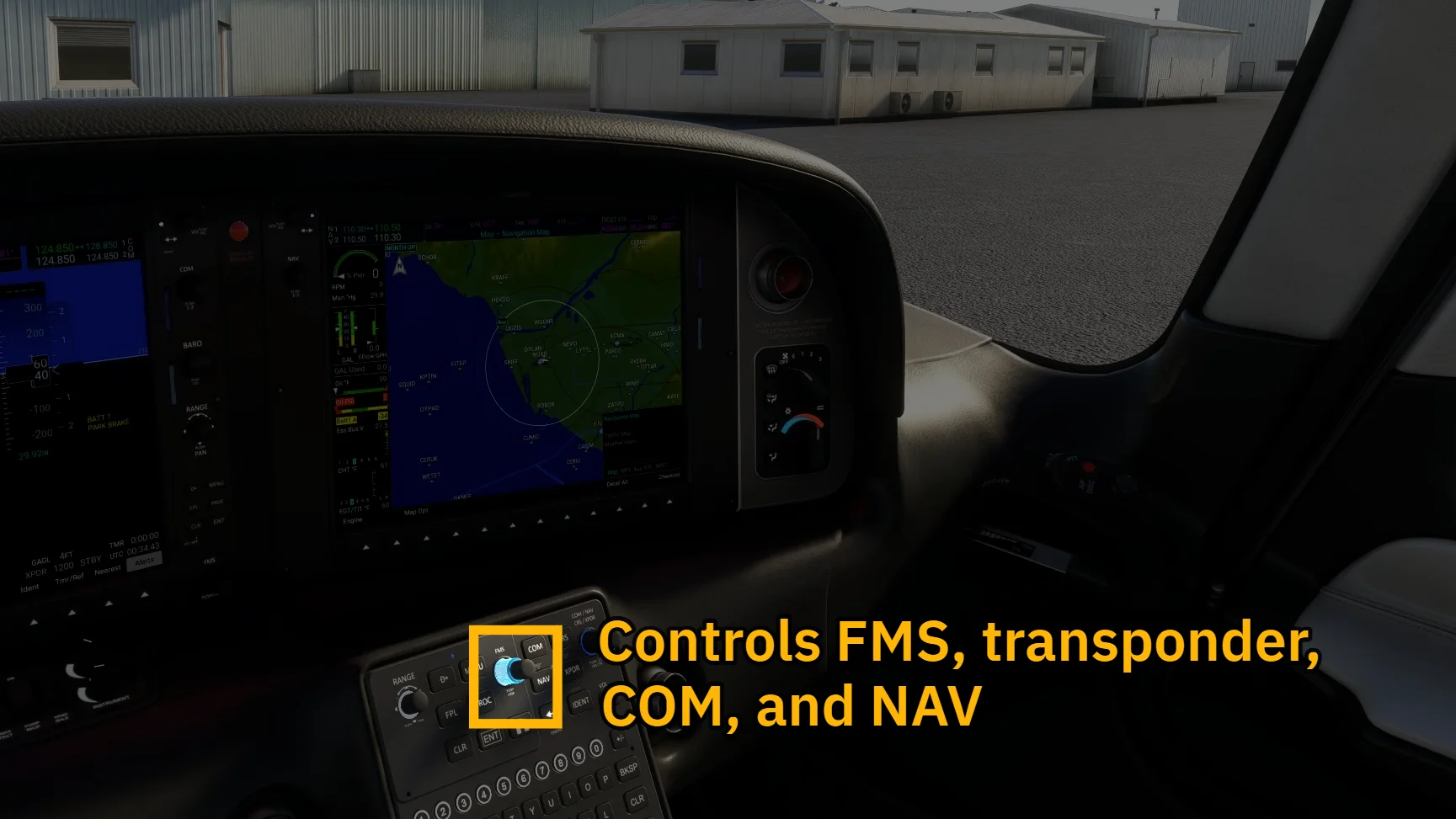
To move between views, Walt needed a different control: the FMS knob. It cycles through the available screens once the system is past the startup page.
Switches Versus Buttons: The Logic Behind Bindings
Most of the first half hour went to control bindings. Many binding mistakes come down to the difference between a switch and a button.
The full report continues in FSC Pro
Members get every session report — real lessons from real 1:1 coaching sessions — plus the full FSC Pro library.
Already a member? Continue reading in the portal →
Based on a real Flight Sim Coach coaching session, used with the client's consent. The client's name has been changed.


