
This session was specific to Thrustmaster TCA Airbus hardware and MSFS 2024, with an iniBuilds A350. Add-ons update constantly, and menu names and options move around. Treat this as a worked example and check the current documentation for your own hardware and software.
Marty is in the final stretch of setting up a new flight sim computer, and his tastes run big. He flies the Airbus widebodies in Microsoft Flight Simulator 2024, the A350 and the A380. Around them he has been assembling the software for a realistic airline-style workflow:
Say Intentions for AI-driven air traffic control and crew
GSX for ground services
SimBrief for flight planning
Navigraph for charts and navigation data
ChasePlane for camera views
He arrived with a punch list. The parking brake on his hardware was not working. The flaps were not responding. And he wanted to know how all of these add-ons fit together.
Working through the list was Nick Marcantonio (ATP, CFI, CFII, MEI), an airline pilot with a CL-65 type rating and regional jet experience. He handles many of the setup and tech-support sessions at FSC. This one was almost entirely a sim tech session: configuration, testing, and one hardware discovery that solved three problems at once.
The session opened with a housekeeping question about graphics. Marty had read about forcing the newest DLSS version at the GPU driver level rather than in the sim (DLSS is NVIDIA’s AI upscaling feature).
Nick’s advice was to leave the driver alone and enable it in the simulator. Forcing changes at the driver level is a common source of instability.
Three push-to-talk keys for Say Intentions
They started with Say Intentions, the add-on that supplies AI air traffic control and crew. The program uses whatever Windows has as the default input device for the microphone, so that part needed no configuration. What it does need is push-to-talk button assignments.
This setup ended up with three of them, one for each person Marty might talk to.
The radio push-to-talk went on a joystick button. Whatever button gets this job has to be dedicated to it, so Nick removed every other binding from that button to eliminate potential conflicts.
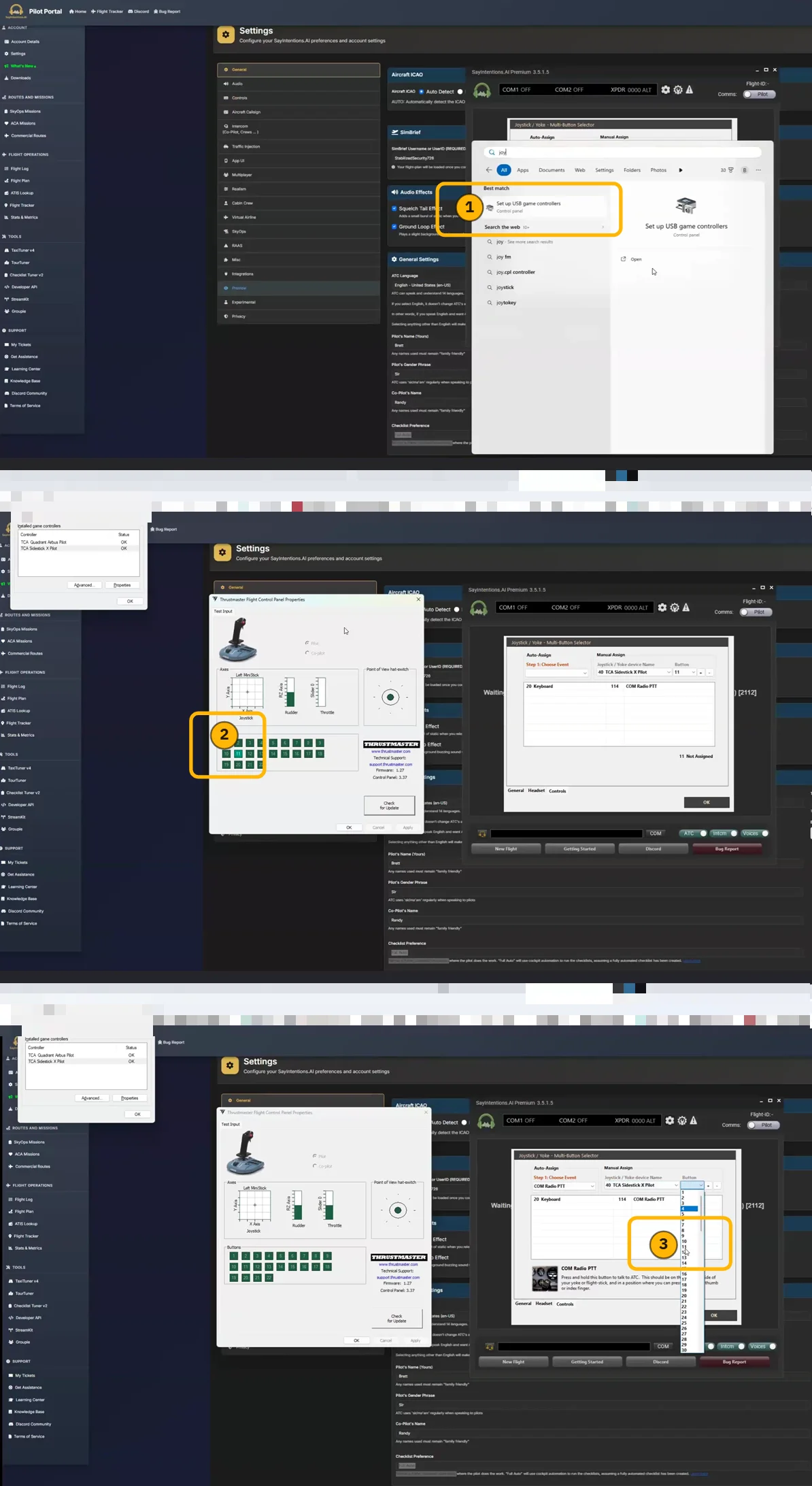
They assigned the intercom to communicate with the co-pilot to the keyboard instead, and Nick walked through the reasoning. The moment you actually use the co-pilot channel is after takeoff, calling for “gear up” once the other pilot announces a positive rate. By then your throttle hand is already free for the keyboard.
Finding a usable key took some trial and error. Marty wanted Enter, but the software never registered the keypress, even though it picked up ordinary letter keys immediately. It also refuses Ctrl, Shift, and Alt when used as modifiers. Left Alt and right Alt do register as keys in their own right, though.
Right Alt became the co-pilot intercom. Nick set left Alt as a backup radio push-to-talk in case the joystick button ever fails.
Say Intentions splits the intercom into channels, so channel 1 was set as the co-pilot and channel 2 as the cabin crew. The cabin crew PTT was assigned to the comma, which sits just above right Alt on the keyboard. That keeps the three assignments in one corner.
Nick noted you will not talk to the cabin crew often anyway, but Marty wanted the full crew experience. The announcements, on-request taxi guidance, and recordable cabin PA are all in there for him to explore.
Live traffic overlap
Marty had FSLTL installed for live traffic, and that created an overlap: Say Intentions injects real-world airline traffic too.
Since Say Intentions would be handling traffic from here on, Nick removed the FSLTL injector and kept the FSLTL base models installed.
The base models are what give that traffic its appearance. When Say Intentions places another airline’s A350 near you, your simulator needs that aircraft model and livery to draw it. Say Intentions does not ship any models of its own.
The FSLTL base model package fills that gap. Without it, injected traffic falls back to whatever aircraft the sim can find, regardless of what the airplane is supposed to be.
A control check in the stock A320
With the software sorted, they loaded the default MSFS A320 to verify the hardware itself. A stock aircraft takes the add-on variables out of the picture. The throttle levers responded right away, but the on-screen position did not match where Marty actually had them.
Nick fixed it with a calibration reset in the throttle settings.
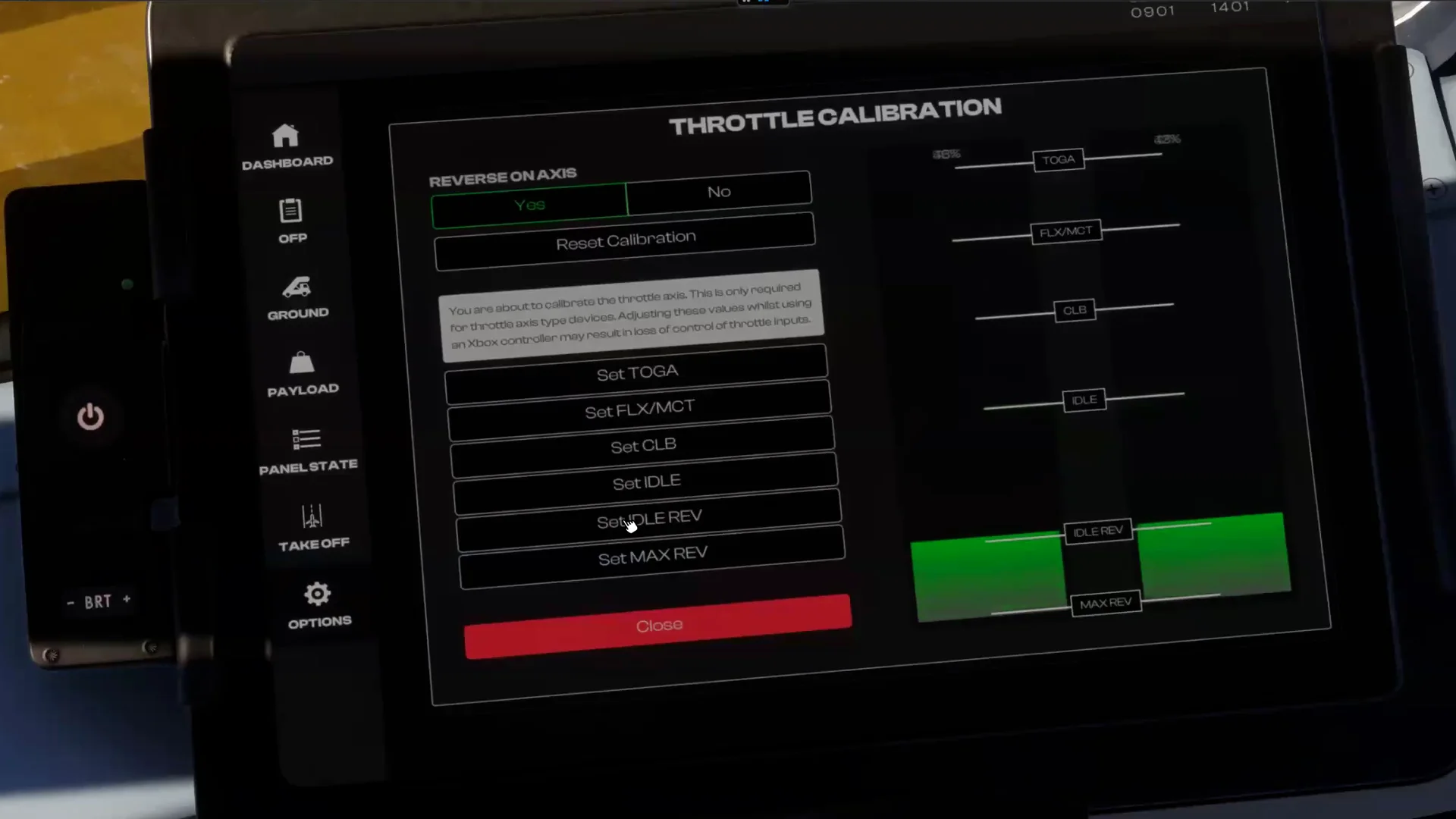
Because the on-screen position is not yet calibrated, you set each detent by the markings on the quadrant itself. Idle, then climb, then FLEX, then TOGA, then back down through idle into reverse. On the TCA quadrant, idle reverse is a small crack backward past the idle detent. Max reverse is the full pull to the stop.
The flaps that would not move
Then came more items from Marty’s list. On his throttle quadrant, the flaps did nothing, the speed brake did nothing, and the parking brake had been dead since the last session. The sim was not even detecting an axis when Marty moved the flap lever.
That pointed at hardware rather than bindings.
Nick went to the Thrustmaster support pages and pulled up the connection diagram for the quadrant.
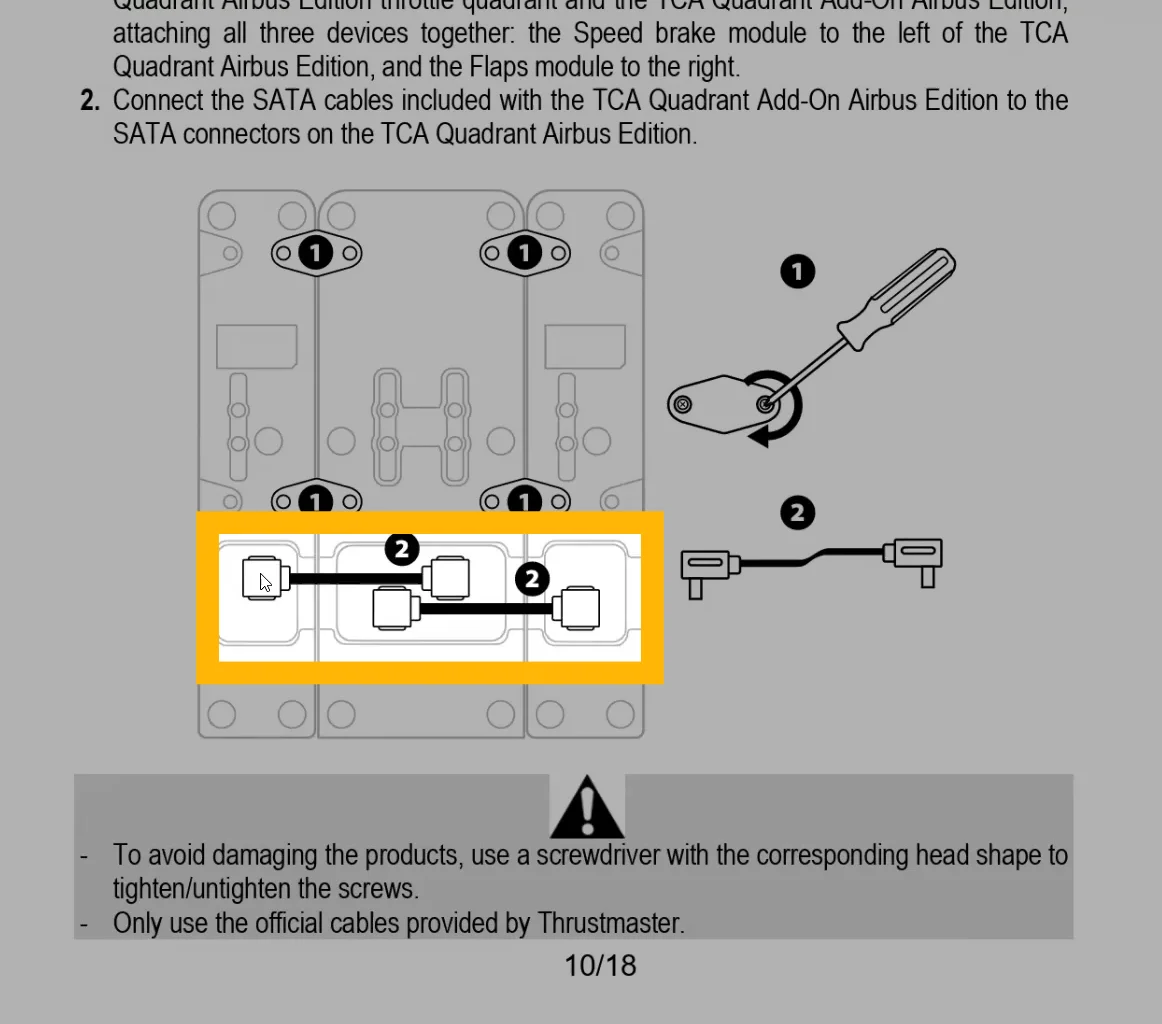
The TCA throttle ships with two identical cables that run underneath the unit. They connect the add-on modules on either side, the flaps and speed brake levers, to the throttle body in the middle. Marty had screwed the modules together but never plugged in the cables.
They were still in the box.
Two cables later, everything on those modules came alive at once: flaps, speed brake, and the parking brake. Nick told Marty not to beat himself up over it. Plenty of his clients have missed the same cables, which is exactly why he knew where to look.
That led to a short explanation of how physical switches and the simulator interact. If you load an aircraft with engines running while your hardware switches are set for cold and dark, nothing matches. The sim deliberately does not snap the aircraft’s state to your physical switch positions when you load in. Move a switch once, though, and it synchronizes from then on.
The takeaway: Set your hardware to match the state you plan to load (e.g., cold and dark). Then your sim aircraft and your peripherals line up from the beginning.
They also tested the auto brake selector. MAX is the normal setting for takeoff, and it’s there for a rejected takeoff. If you close the throttles during the takeoff roll above a certain speed, the system applies maximum braking on its own.
Setting up the iniBuilds A350
Marty’s main ride is the iniBuilds A350, so that came next. It opened with a question about whether GSX and Say Intentions talk to each other. GSX handles jet bridges, pushback, catering, and other ground services. The answer for now is that they do not directly integrate, although the developers are working on it.
Both can run a pushback. You pick one for that job, either the Say Intentions ramp agent or the GSX menu.
An add-on conflict needed untangling first: the sim’s toolbar had disappeared, and the culprit was Flow, a launcher utility Marty had installed. Flow replaces the default toolbar triggers with its own interface. Nick found the fix in Flow’s settings wheel, an option to re-enable the default toolbar triggers. After that, both worked side by side.
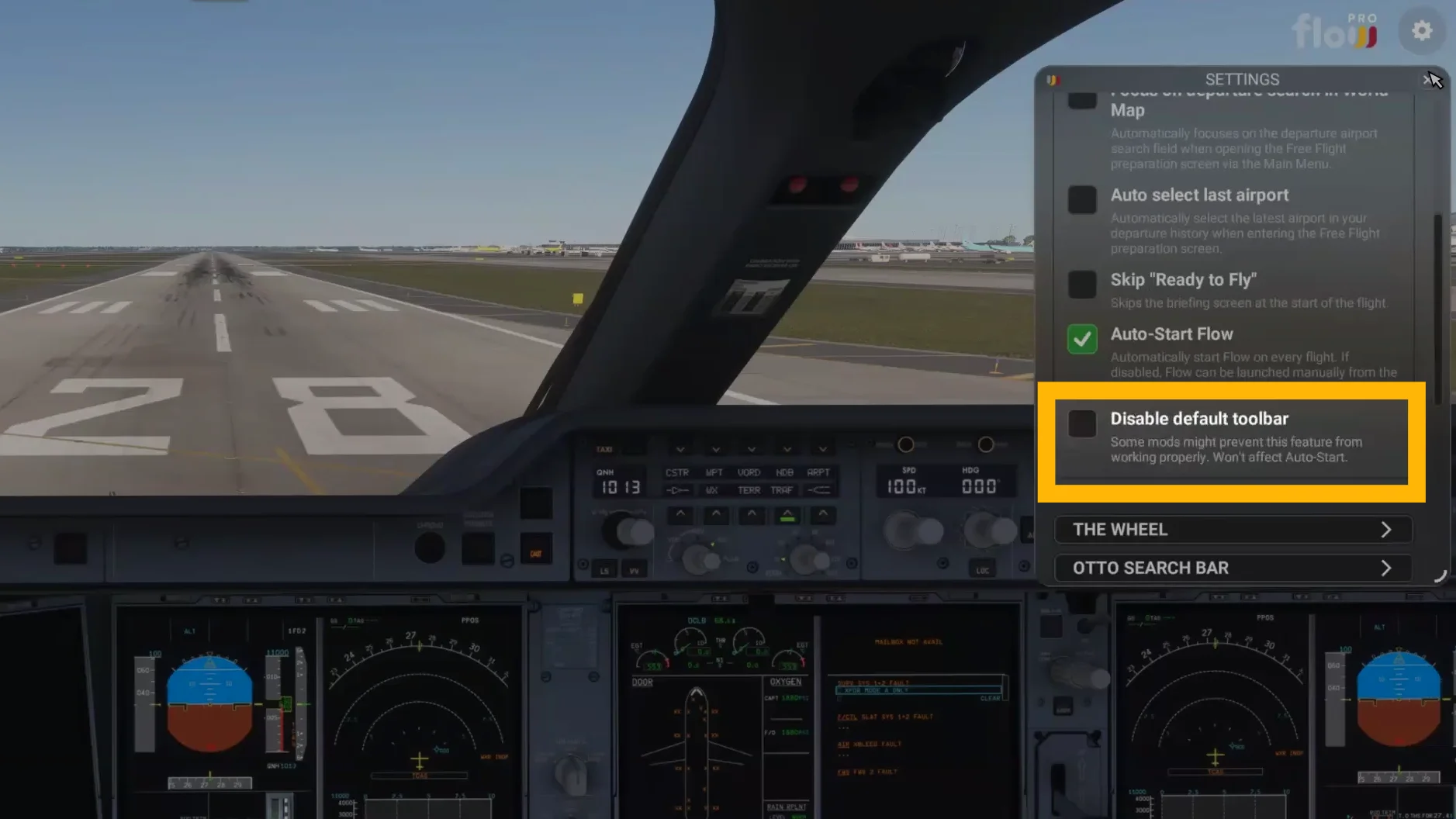
Nick’s view of Flow is that it is powerful but complicated, so Marty can decide later whether he actually wants it.
The A350 does its own throttle calibration inside the aircraft settings, separate from the calibration done earlier in the sim menus. Same drill, driven by the markings on the hardware: idle, climb, FLEX, TOGA, then idle reverse and max reverse. Each detent also gets a small dead zone value so the aircraft is not oversensitive to a lever sitting a hair off the mark.
The rest of the aircraft configuration was accounts and options:
The SimBrief user ID goes in the third-party settings so the aircraft can import flight plans
The Say Intentions API key gets pasted in from the account page
Signing in to Navigraph updates the navigation database
One catch there: the A350 refused to update its navigation data with the engines running. The engines had to come down and the APU back up just to let the update run.
They kept most of the default aircraft options, but “auto step climb” needed some explaining.
A step climb is what long-haul flights do as fuel burns off. An airplane that could only reach 35,000 feet at its takeoff weight gets lighter over the hours. It climbs to 37,000, then higher, in steps, saving fuel at each higher altitude. The auto option performs those climbs even when nobody is at the desk, a convenience choice for long flights left running unattended.
Engine start, and why the A350 refused to hurry
Starting the A350 is easy: twist the selector to ignition start, turn an engine on, and the automation handles fuel. The one prerequisite that bit them was APU bleed, which must be on before the start will begin.
The second start took much longer, and the delay turned out to be a modeled detail. The engines had been running earlier and were still hot, and starting fuel into an overheated engine risks a hot start, an exhaust-gas-temperature exceedance that can damage the turbine. So the aircraft automatically “motored” the engine to blow cooling air through it, only introducing fuel once the temperature dropped.
The A350’s auto brake got its own discussion, because the aircraft models a runway exit feature. Instead of picking a brake level, you can select your landing runway and tell the system which taxiway you want to exit on. On touchdown, it applies the braking needed to arrive at that taxiway at a reasonable taxi speed.
Talking to the AI crew
With everything wired up, they tested Say Intentions. Marty’s microphone was still in a box somewhere. That turned out not to matter for the test, because Say Intentions also accepts typed input. They texted a request to ATC, told the co-pilot to raise the gear over intercom 1, and asked the cabin crew on intercom 2 whether they were ready for takeoff. The AI answered each one.
The first typed call to the tower came back with a correction: wrong frequency. Say Intentions does not move you between controllers automatically. You switch to the right frequency yourself, as you would in the real airplane.
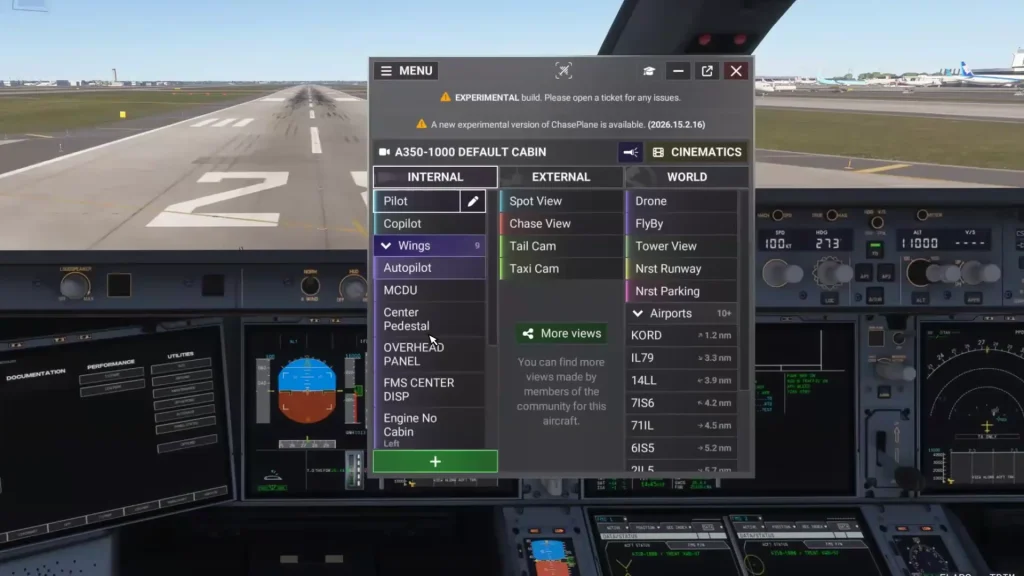
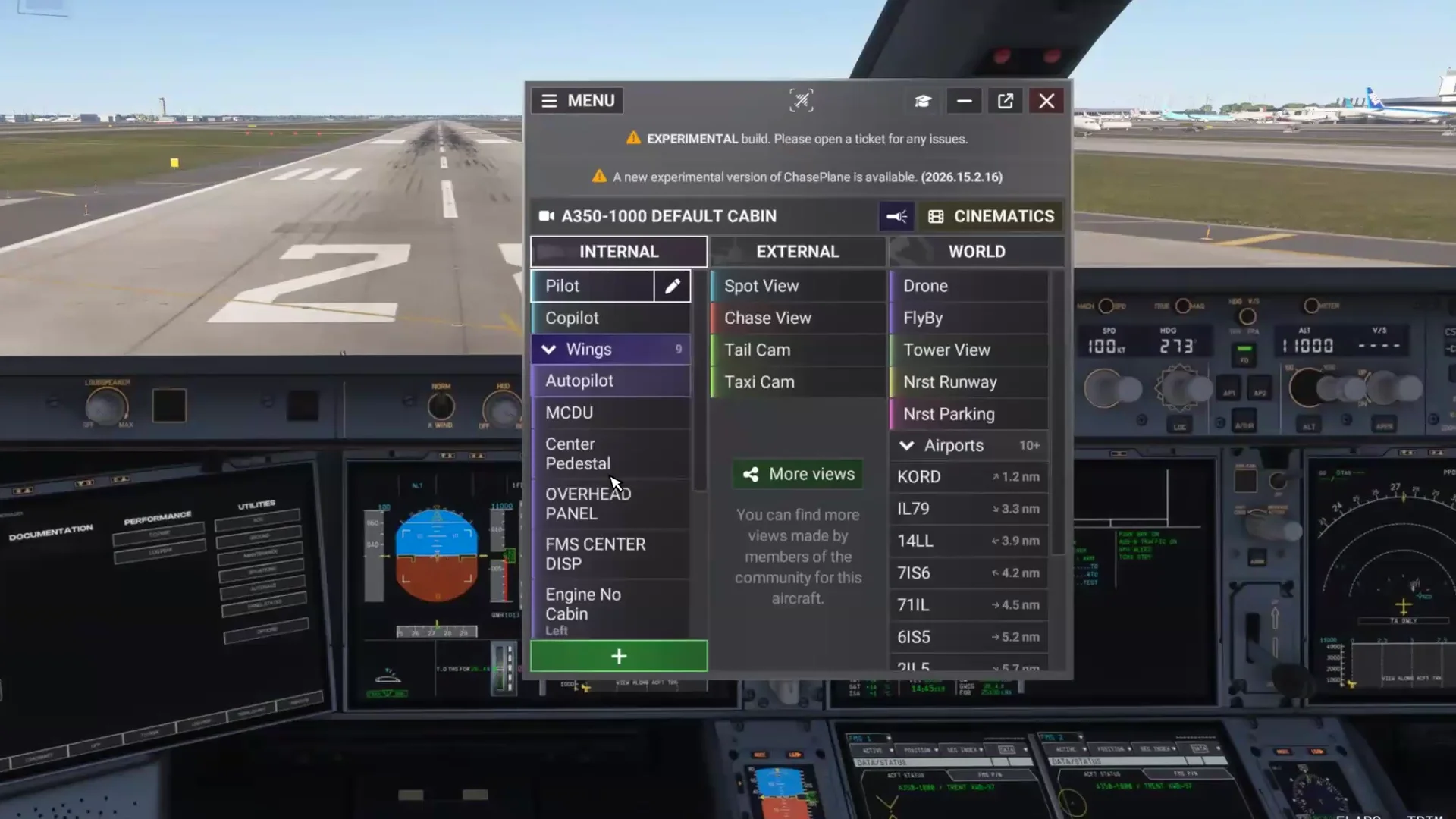
Nick gave a quick tour of ChasePlane on the way out of the A350. It is an add-on for smooth, customizable cockpit and exterior camera views. It ships with built-in views for most aircraft: focused shots of the autopilot panel, the MCDU, the center pedestal, and so on. Any view can be tied to a keyboard shortcut.
Watch for conflicts, though. A shortcut you assign in ChasePlane may already mean something in the simulator’s own control bindings, so check both sides before you settle on a key.
Four engines on the A380
Marty’s last list item was the A380, and it comes with a mapping problem.
If you load it with a stock controls profile, only engines 1 and 2 respond, because that profile maps a two-engine aircraft. There is no built-in four-engine layout to switch to.
Nick had built one for Marty in an earlier session, duplicating the stock Thrustmaster TCA profile and remapping it so the left lever drives engines 1 and 2 and the right lever drives 3 and 4, along with the matching masters, fuel valves, and starters.
He tags anything he builds himself with “FlightSimCoach” so it stays obvious later which profiles are his. Switching between the two lives in the throttle section of the controls menu: select the four-engine profile before flying the A380, and the two-engine one, which is the default, for everything else.
Nick made one more change to the profile, deleting the separate reverse-thrust button bindings. The TCA quadrant has reversers built into the levers themselves. Nick has found the profile works better on this hardware without the duplicate bindings.
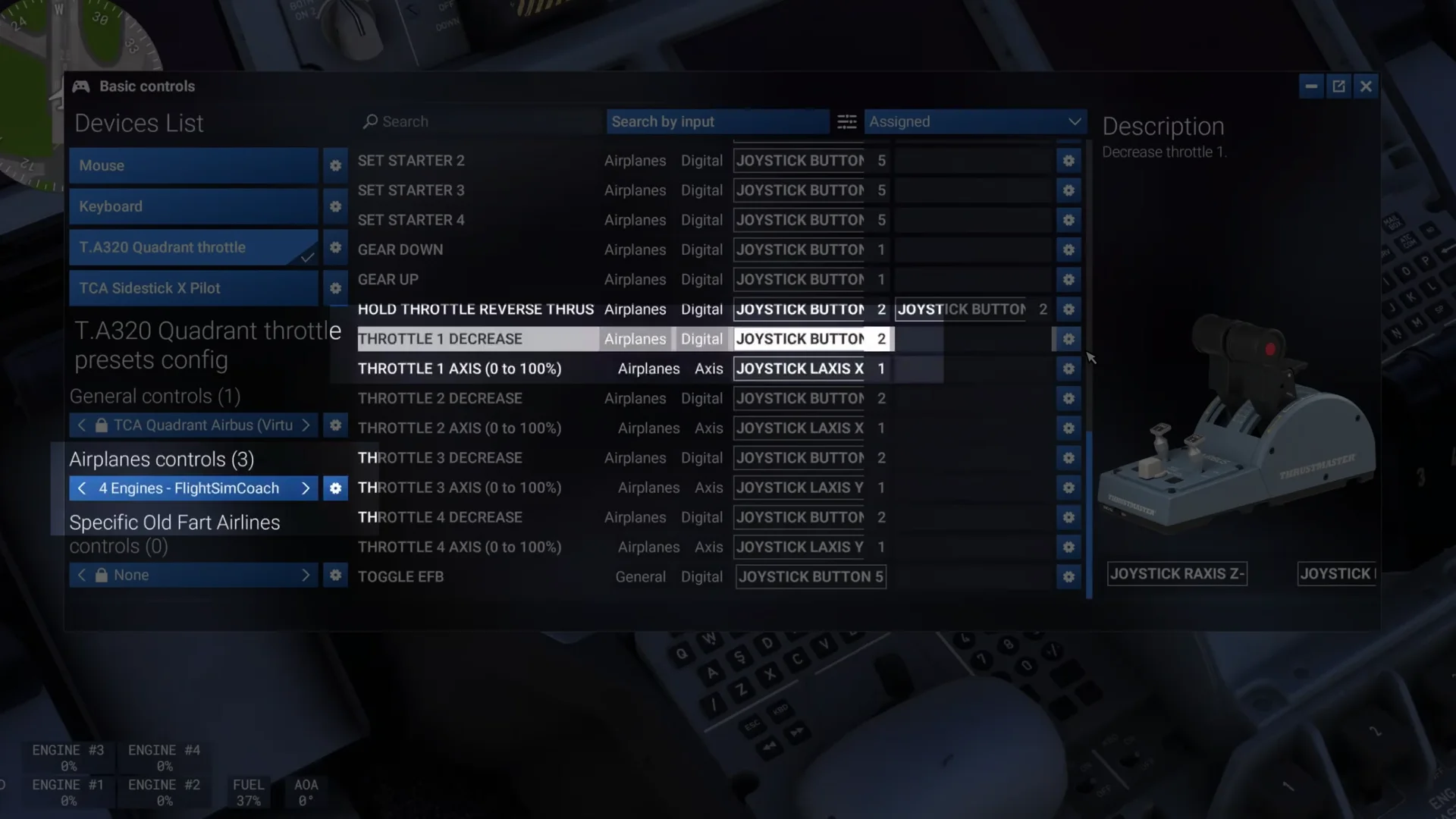
The A380 then got the same treatment as the A350. Throttle detents were calibrated inside the aircraft’s own settings, idle through TOGA and back through the reversers, then a full start. The start sequence worked the same way with four engines.
The engine 1 switch brought up the left pair together, riding APU bleed until the start became self-sustaining and most of the start cautions clear. Once all four engines are running, ignition goes back to normal and the APU and its bleed are shut down.
Where things stand
By the end, the hardware was fully connected and calibrated in three aircraft. The AI crew answered on all three channels, live traffic was set to draw from the FSLTL base models, and GSX and Flow coexisted with the toolbar.
Marty’s remaining homework is small: find the microphone he bought, write down his button assignments, and start building checklists for the A350. That last feature is new enough in this aircraft that they set it aside for another day.
That’s the whole report — free, start to finish
Every other session report — real lessons from real 1:1 coaching sessions — plus the guides, courses, and tools, is part of FSC Pro.
Based on a real Flight Sim Coach coaching session, used with the client's consent. The client's name has been changed.


