Why we wrote this
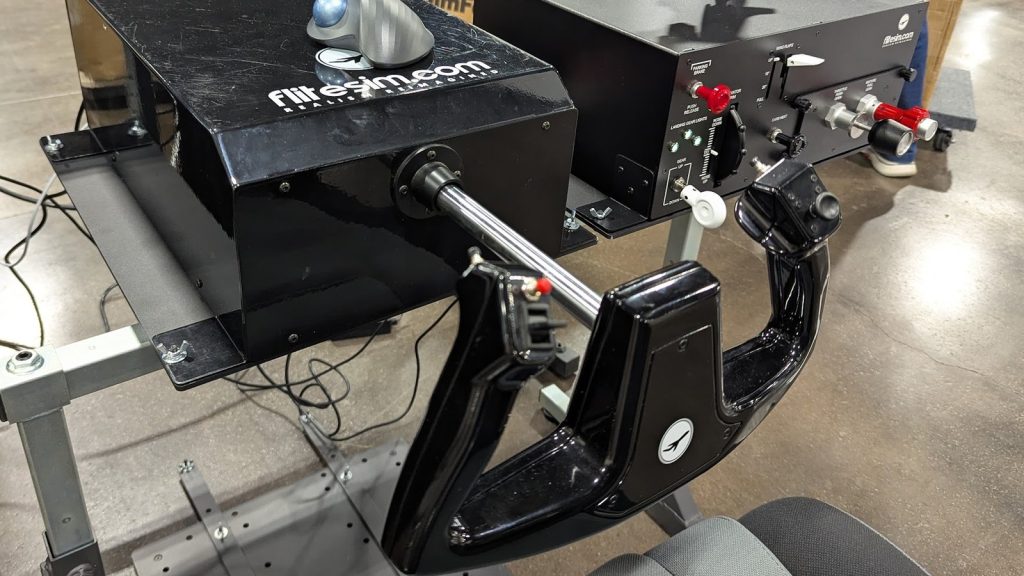
FliteSim lent us a CLS-60 force feedback yoke in late 2025 so that one of our sim techs, Jordan Gottfried, could learn it inside out and help the people who own one. He’s been flying the yoke and helping CLS-60 owners with setup and tuning ever since, and these are the notes he collected along the way.
FliteSim already publishes solid documentation, so we won’t repeat the manual here. Instead, this post covers the things that weren’t obvious at first: features that ship turned off, one setting you need to remember to flip back when you switch simulators, and the problems we’ve run into most often in live sessions.
Have a CLS-120? It runs the same FFBTools software, so these tips apply to it too.
These notes were last checked against FFBTools v3.3.6, so if you’re on a newer version, a menu name or two may have moved.
Getting started
The CLS-60 has three cables: AC power, USB to your computer, and the emergency shutoff switch. Once everything is connected, update the yoke’s firmware and install the latest version of FFBTools from FliteSim before you do anything else. Several of the features below depend on it.
The yoke runs a calibration cycle every time it powers on, moving through its range of motion by itself. Make sure nothing is in the way (knees, keyboards, coffee) before you switch it on.
The most useful thing to know on day one is that several useful features are off by default, including autopilot mirroring, turbulence effects, and automatic profile switching. If something you expected isn’t happening, check the FFBTools settings before assuming anything is wrong.
X-Plane users: With current firmware, the yoke talks to X-Plane directly, so you don’t need to bind its axes or calibrate it inside the sim. In fact, you shouldn’t: leave the yoke axes unbound in X-Plane. That direct connection is what makes Instant Replay work.
Instant Replay in X-Plane 12
For training, this is the CLS-60 feature we find most useful. When you play back a flight in X-Plane’s replay mode, the yoke physically moves through the inputs you made, in sync with the replay. You get to watch and feel what your hands were doing during a landing or an approach.
For debriefing landings, this is hard to beat. It’s one thing to hear “you relaxed the back pressure too early in the flare.” It’s another to rest your hands on the yoke and feel it happen.
To set it up:
- In FFBTools, open AP And Trim and enable Pos Direct Input.
- Make sure the yoke has no axis bindings in X-Plane. FFBTools handles all of that.
- After a flight, press Alt + R in X-Plane to enter replay mode. The yoke will follow your recorded inputs.
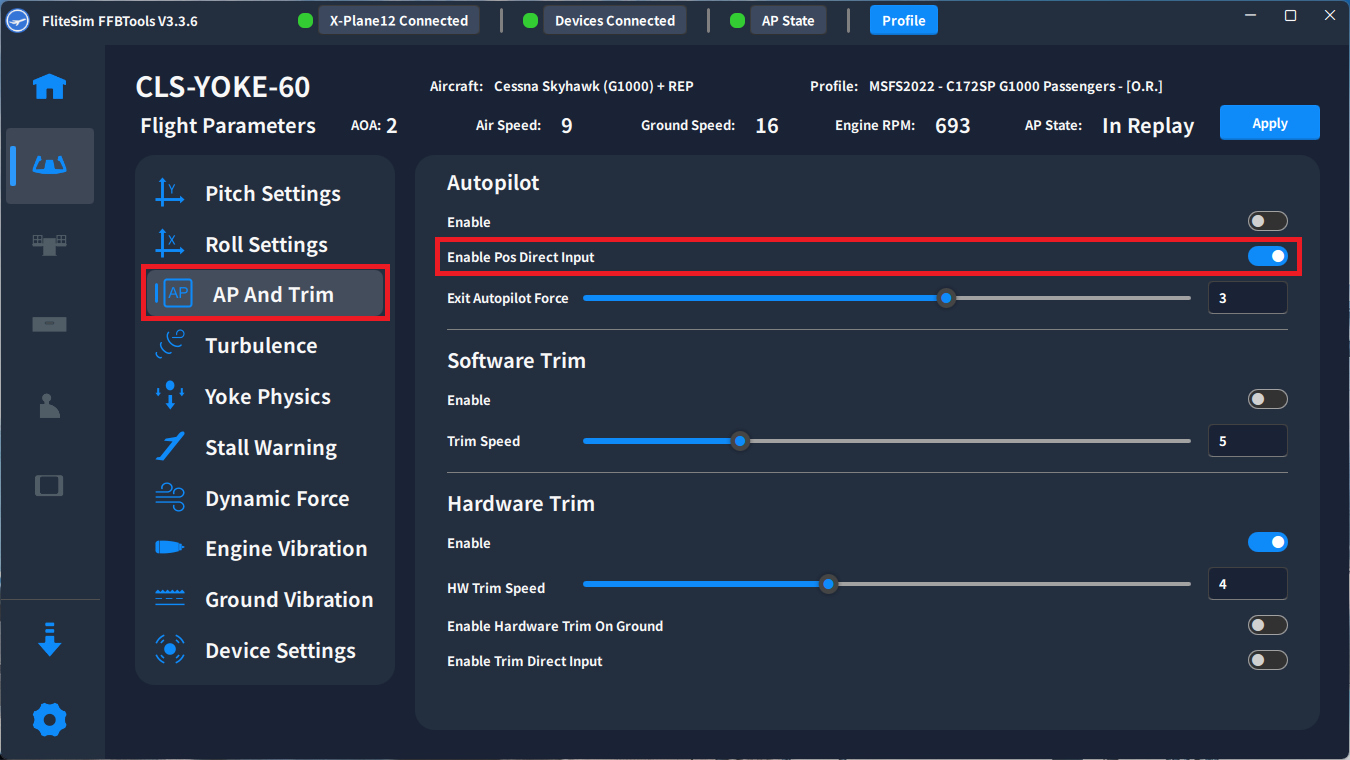
Switching back to MSFS: Pos Direct Input doesn’t turn itself off when you change simulators. If you go back to Microsoft Flight Simulator after using Instant Replay in X-Plane, turn this setting off first.
Here’s what it looks like. Jordan flew two short-field landings in a Cessna 172 in X-Plane 12, the second one in a crosswind, then played each one back through the yoke.
Aircraft profiles
FFBTools uses a profile for each aircraft to set how the controls feel: how much force, how much damping, how heavy the yoke seems. It comes with a large library of built-in profiles covering the default aircraft in MSFS 2020 and 2024 and X-Plane 11 and 12, plus a growing list of popular add-on aircraft. FliteSim keeps the current list, along with community profiles, on its FFBTools V3 Profiles help page.
Turn on automatic profile switching
Out of the box, you pick profiles by hand. To have FFBTools load the right one whenever you change aircraft, go to Settings and enable Auto Load Profile Based On Aircraft Model.
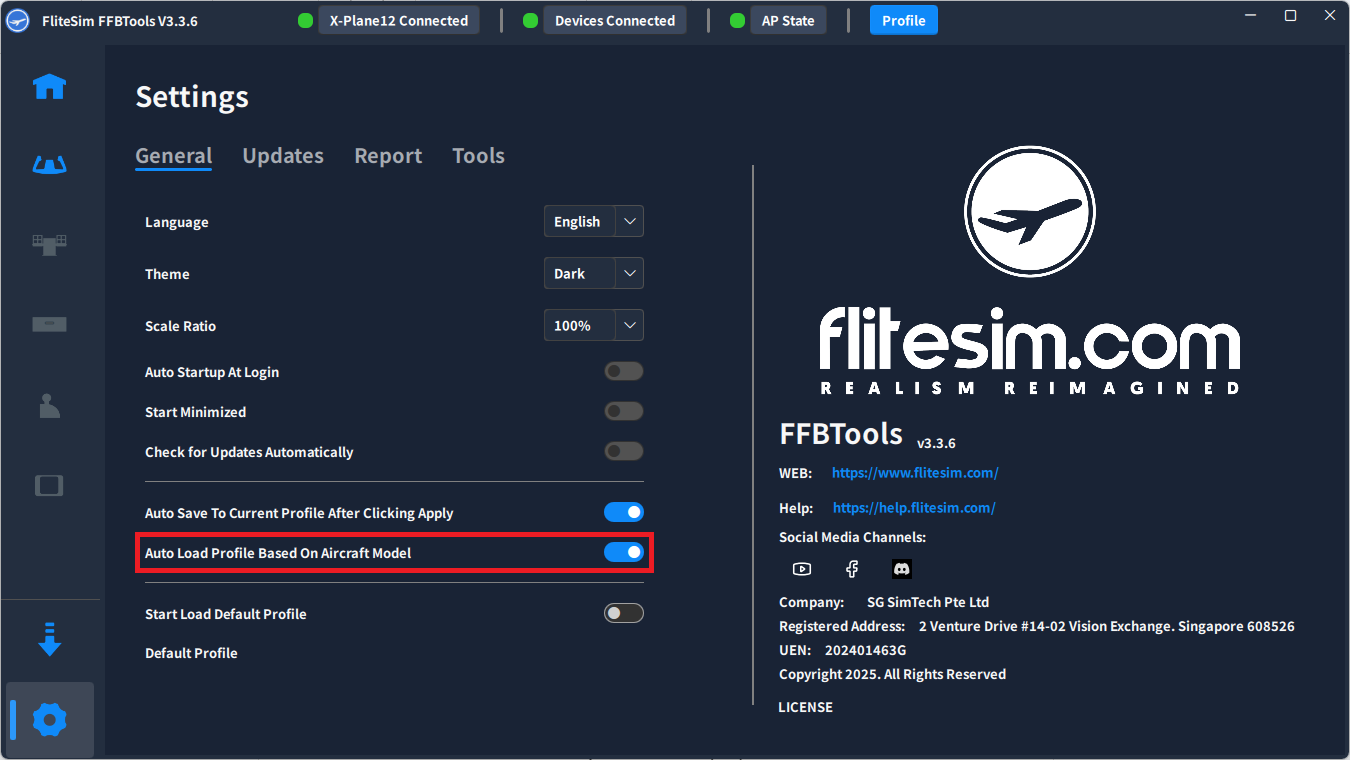
This one matters more than it sounds. When a client tells us the yoke “feels wrong” in a particular airplane, the first thing we check is which profile is loaded. Sometimes switching to the right profile is the whole fix.
Adding custom profiles
If your aircraft doesn’t have a profile yet, you can add one. Profiles are .json files that go in this folder:
C:\Users\<your username>\AppData\Local\FliteSim\FFBTools\profile\
Restart FFBTools after adding a profile (it converts older file formats to JSON on its own), and make sure the profile name inside the file matches the file name.
Using AI to draft a profile: You can ask an AI tool like ChatGPT to draft a profile file for an aircraft that doesn’t have one. Treat the result as a starting point. Be especially careful with damping and inertia: if they’re set too low, the yoke can start to oscillate.
Settings worth changing
FliteSim’s FFBTools V3 documentation covers every setting. These are the ones people most often want to change.
Autopilot mirroring
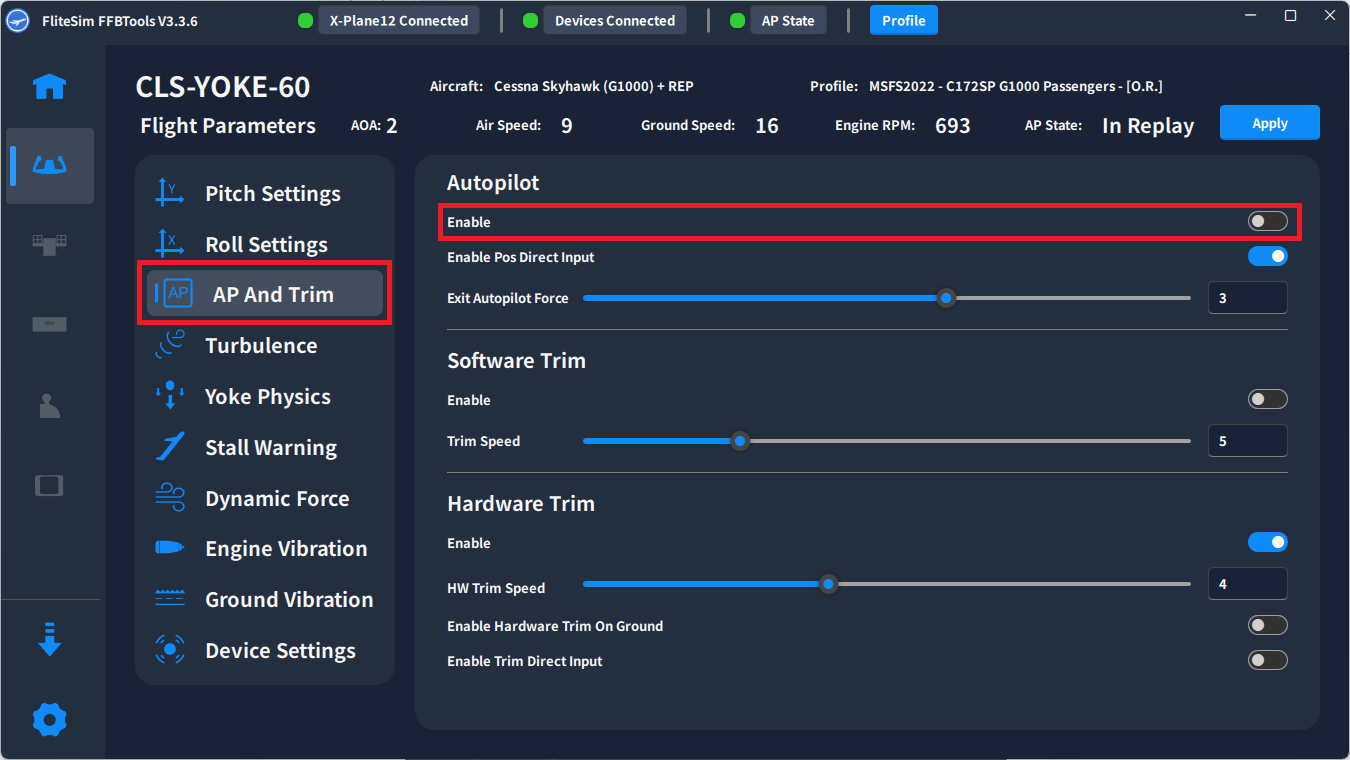
With this on, the yoke moves on its own to follow the autopilot, much like the controls move in a real airplane when the autopilot is flying. It’s off by default. To turn it on, go to AP And Trim and toggle Enable under the Autopilot section.
Turbulence
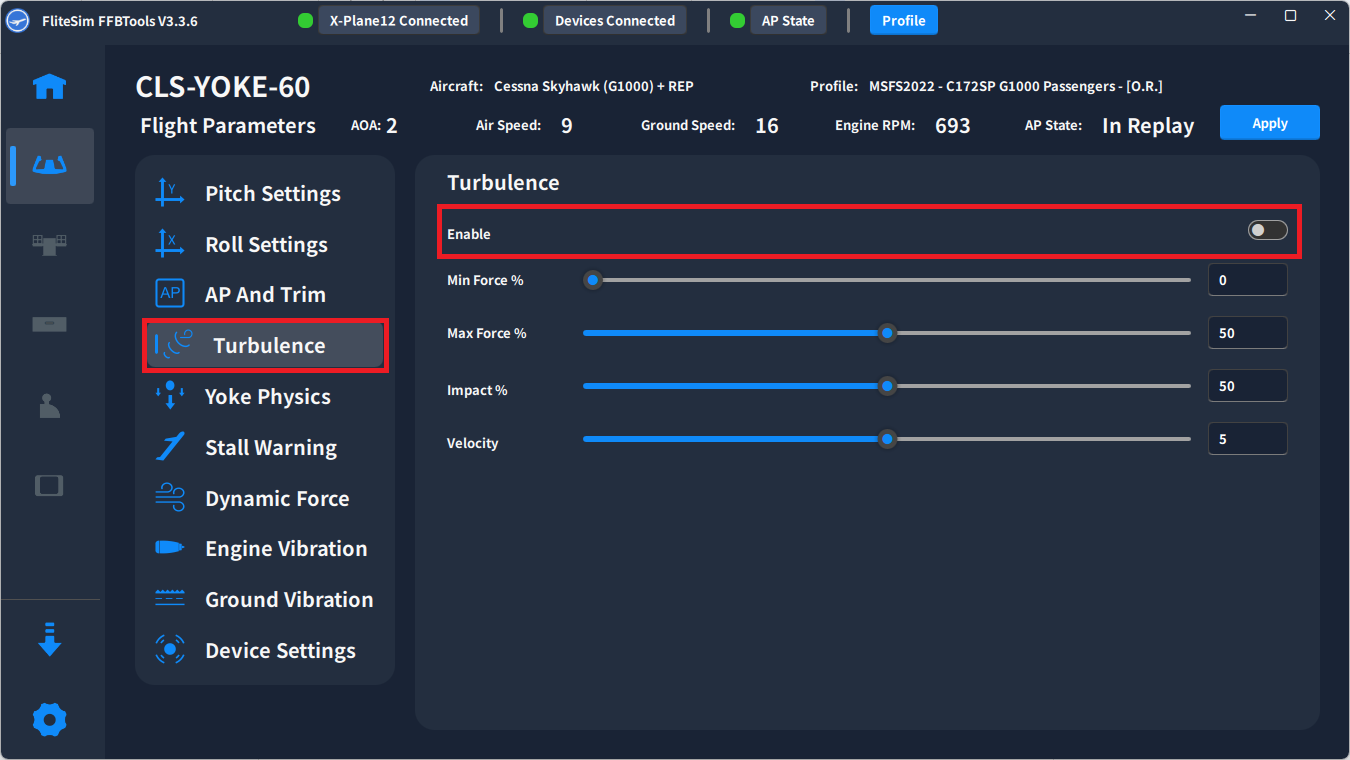
This adds turbulence you can feel through the yoke, based on the weather in the sim. It’s also off by default. Go to Turbulence and toggle Enable.
Force and feel
If the yoke feels too heavy, too light, or just not like the airplane, you can adjust it under Pitch Settings and Roll Settings. There are three main things to work with:
- Position and force: the force curve, meaning how much resistance you feel at each point in the yoke’s travel.
- Damping: how much the yoke resists quick movements.
- Inertia: how heavy the yoke feels when it moves.
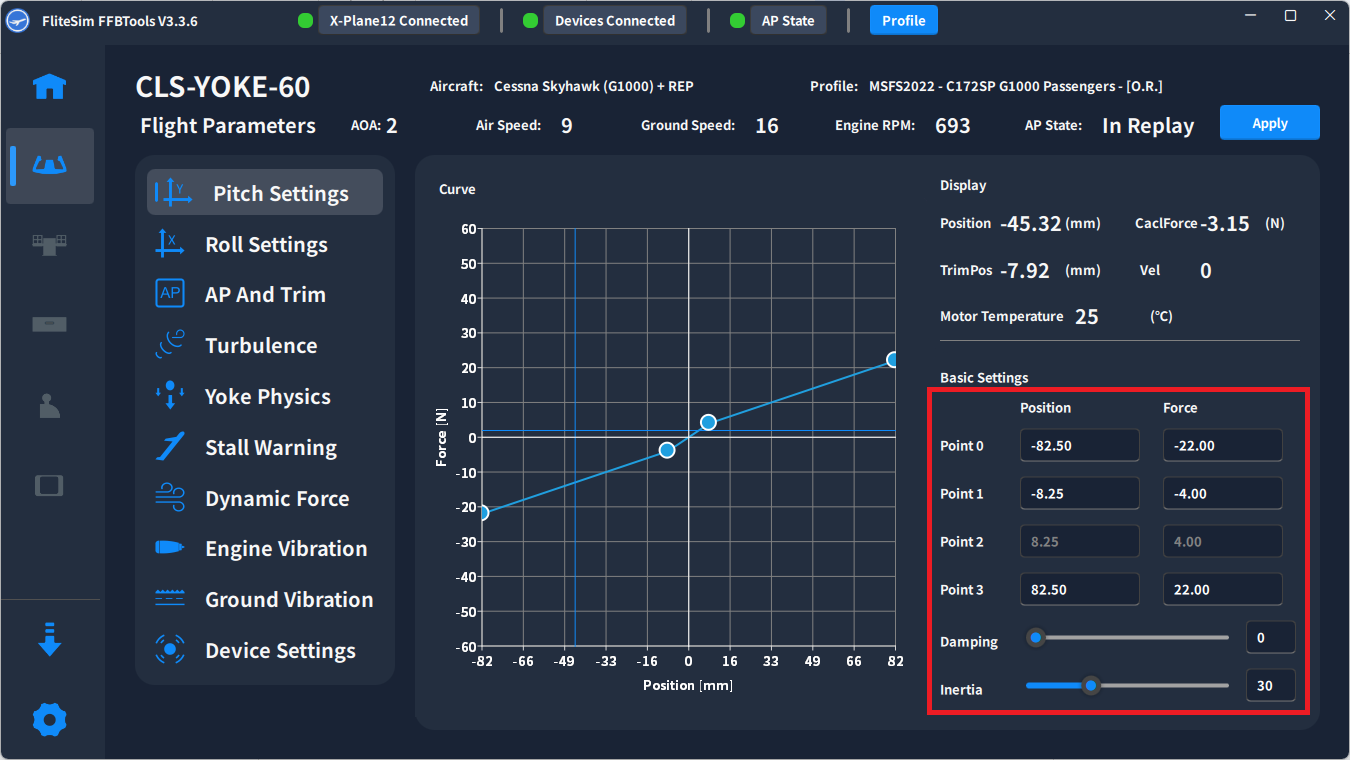
This is where the CLS-60 can get close to a specific airplane. In one session, a client who flies a real Cessna 206 wanted the add-on 206 in X-Plane to feel more like their own aircraft. We worked through the pitch and roll force curves together, with the client flying and giving feedback, until it felt right to them. Having a second person watch your settings while you fly can make that back-and-forth a lot quicker.
Buttons
The yoke has a limited set of built-in buttons, and the recommended default bindings work well for general flying. If you want more controls within reach, FliteSim sells an optional front panel accessory with extra programmable buttons.
If FFBTools stops seeing the yoke
One problem we’ve run into in more than one live session isn’t about settings at all, it’s about connections. FFBTools stops showing the yoke (or an attached accessory), and the sim doesn’t see it either. In the sessions where this happened, the fix came from working through the connections: power, USB, and the emergency shutoff switch, then confirming FFBTools detects the yoke before opening the sim.
If you’ve checked all of that and it still won’t show up, FliteSim’s support is the right next stop for anything that looks like a hardware fault.
Shopping for a yoke rather than setting one up? Our guide to flight simulator yokes compares force feedback models side by side.