

Control bindings, avionics behavior, and engine handling vary by aircraft, hardware, and software version. Treat this as a window into how one instructor approached the client’s setup, not as a setup tutorial for your own rig.
Inside this report
DLSS versus TAA: reading the glass panel
Frame generation, frame rate, and photogrammetry
G-Sync, NVIDIA settings and USB power saving
Is a red FPS counter a problem?
Includes a DLSS/TAA screenshot comparison, a short flight-test clip, and an animated G-Sync explainer.
Dennis just built the best PC he could afford and wanted to know what to do with it. He flew Microsoft Flight Simulator 2020 for years, drifted away, and came back about three months ago on MSFS 2024. The new machine came with a 32-inch 4K monitor and an NVIDIA RTX 5090, and his question was: what display settings to run?
He flies mostly low and slow with a group of bush-flying friends, and drops into a military jet now and then for fun. He is not a real-world pilot, but a retired IT professional with about thirty years in the field. He really wanted to understand the reason behind each setting tweak.
His sim tech was Jordan Gottfried (FAA CFI, CFII, MEI). Jordan grew up around aviation and had his private certificate at 17. He spent a few years in IT before coming back to aviation as an instructor.
The anti-aliasing setting
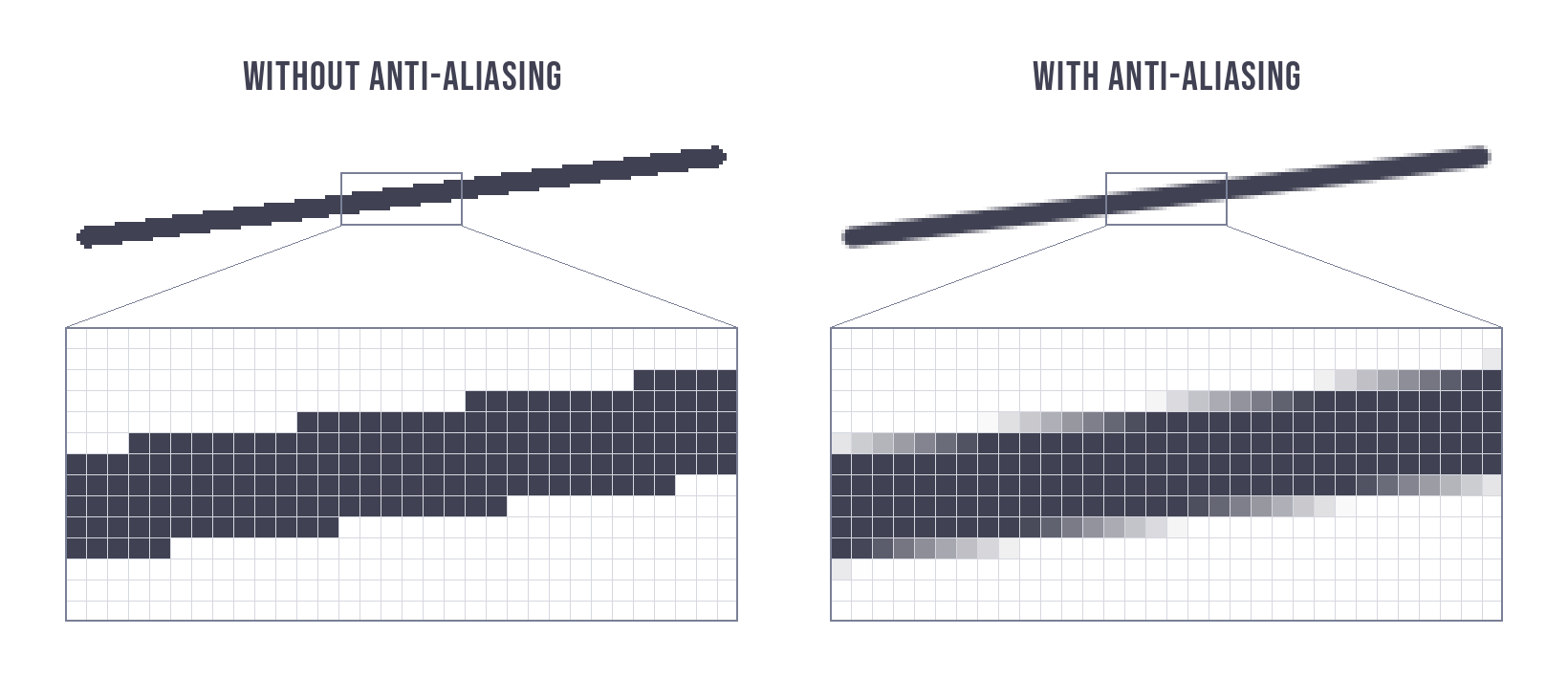
Anti-aliasing was the first thing Jordan worked on. At a basic level, this helps to smooth out jagged lines on the display.
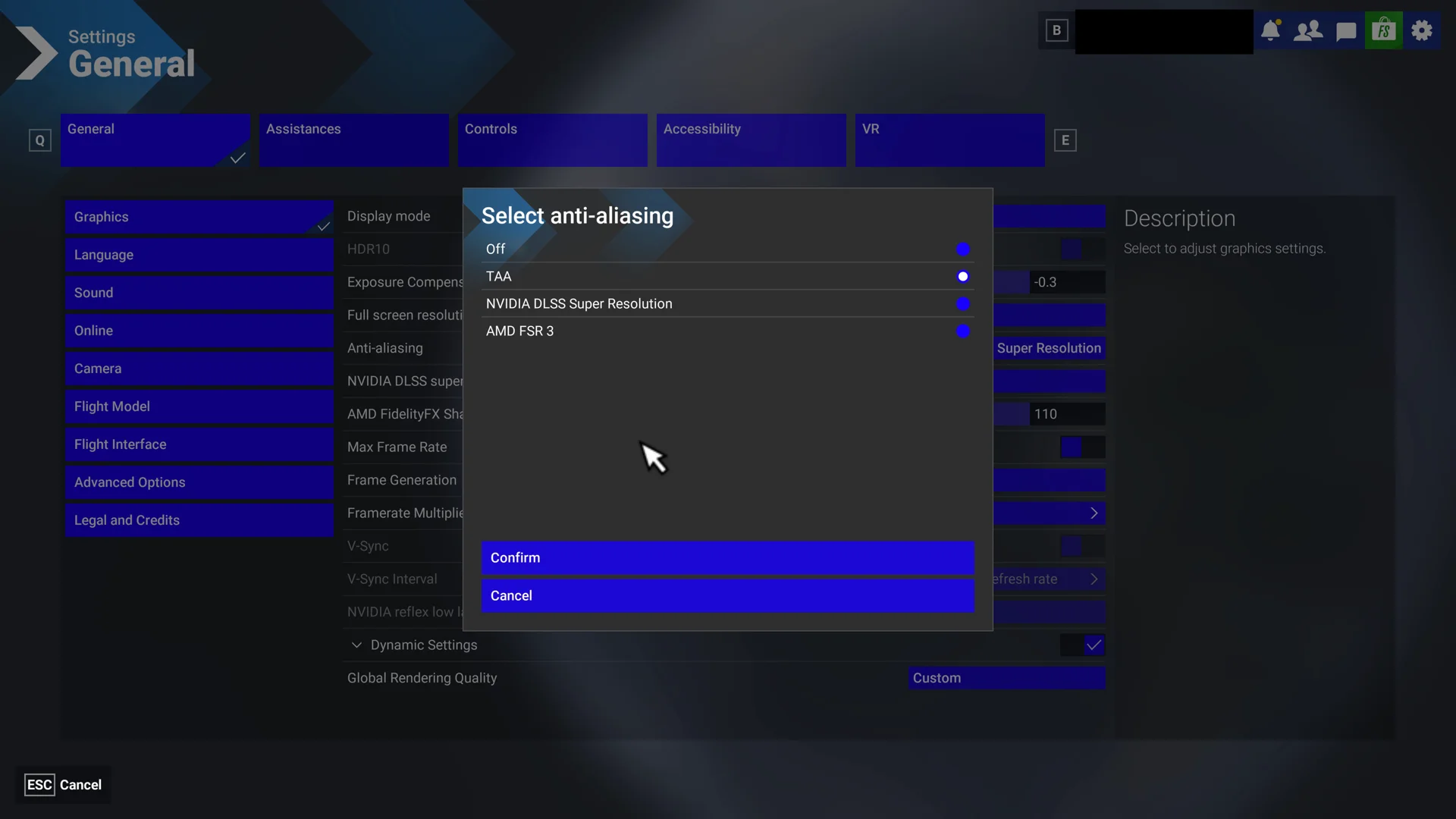
MSFS offers a number of anti-aliasing options. Initially, the anti-aliasing menu had “NVIDIA DLSS Super Resolution” selected.
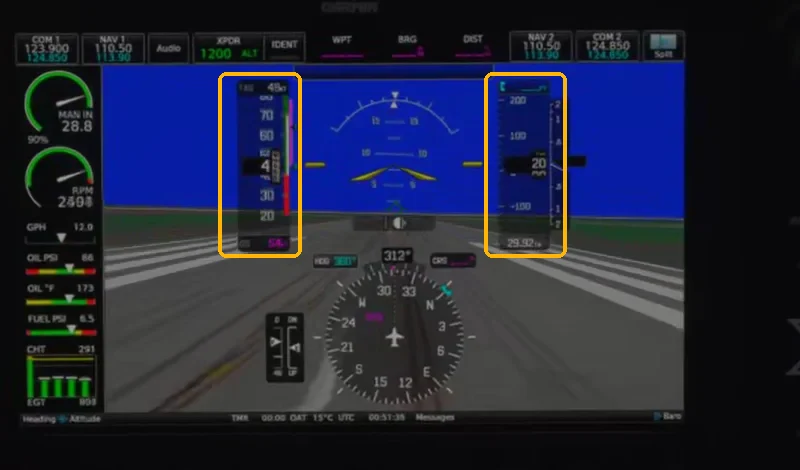
DLSS draws each frame at a lower resolution, then uses AI to reconstruct a full-size image. Drawing fewer pixels saves work, but the reconstruction can soften fine details such as cockpit text.
This is especially noticeable on a glass cockpit. Small, changing numbers can look blurred with DLSS, making instruments harder to read.
Dennis’s machine had enough power to render at full resolution, so Jordan switched to TAA with render scaling at 100%.
After Jordan’s change, the “DLSS super resolution” row disappeared and a “Render scaling” row took its place, set to 100.
The sim would now draw each frame at the monitor’s full 3840×2160 (instead of drawing a smaller image and using AI to reconstruct it at full size).
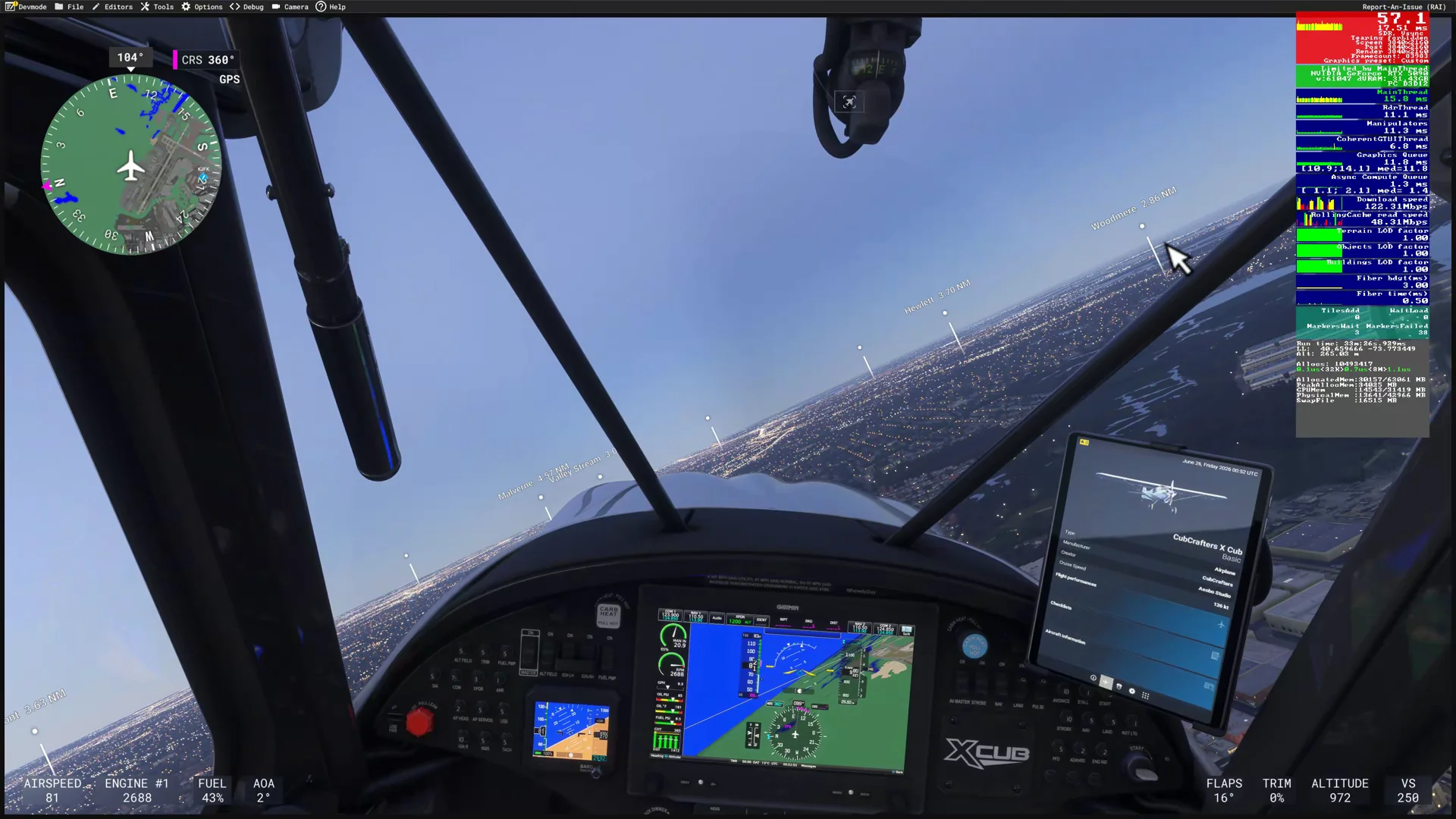
Later in the report, we’ll cover their test flight at KJFK and compare the before/after difference visually.
Update, October 2026: A new free community add-on, Glass Cockpit DLSS Fix, aims to reduce ghosting on cockpit displays while keeping DLSS on in MSFS 2024. It is new and changing quickly, and it’s possible that sim updates could cause it to stop working. We haven’t tested it. The comparison above shows the settings used in this session, without the add-on.
Frame generation
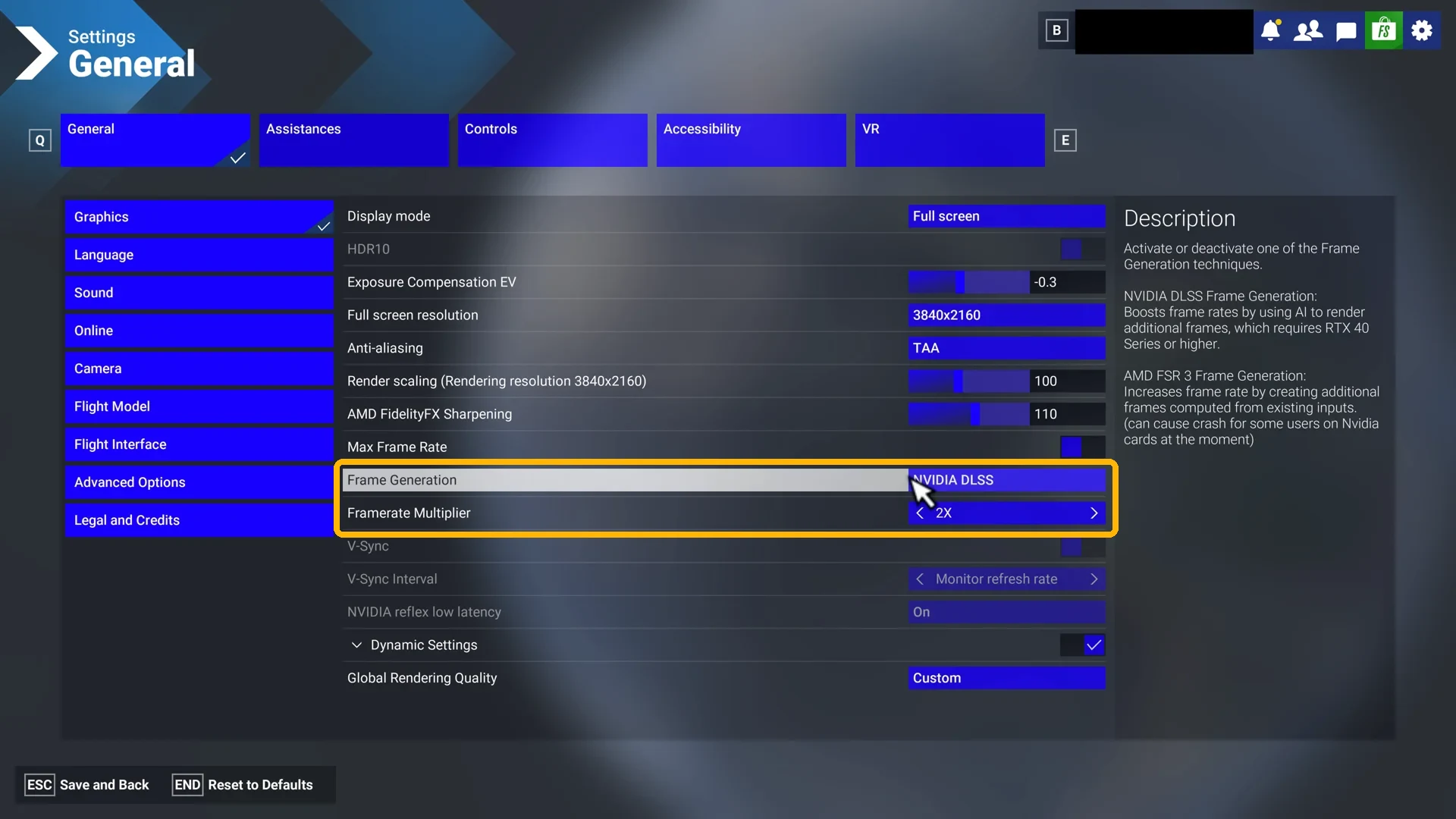
Jordan worked his way further down the graphics settings, to “Frame Generation.”
Frame generation inserts extra AI-generated frames between the GPU’s “actual” rendered frames to boost frame rates.
Initially it was set to “NVIDIA DLSS”, with a “Framerate Multiplier” of 2X beneath it, and Global Rendering Quality read “Custom”.
But didn’t they just turn DLSS off in the anti-aliasing section?
Despite the name, this isn’t the same DLSS. DLSS is NVIDIA’s name for a group of AI features. Super Resolution rebuilds a full-size image from a smaller one, while Frame Generation adds frames in between.
Now we’re focused on the second feature (frame generation).
With the 2X setting shown in the screenshot, frame generation inserts one extra image between rendered frames. In theory, 30 rendered frames per second becomes 60 displayed frames.
But creating those extra images also takes processing time. Jordan gave an example: 30 FPS might drop to about 25 rendered frames per second, then reach about 50 displayed frames by adding an AI-generated image between each pair.
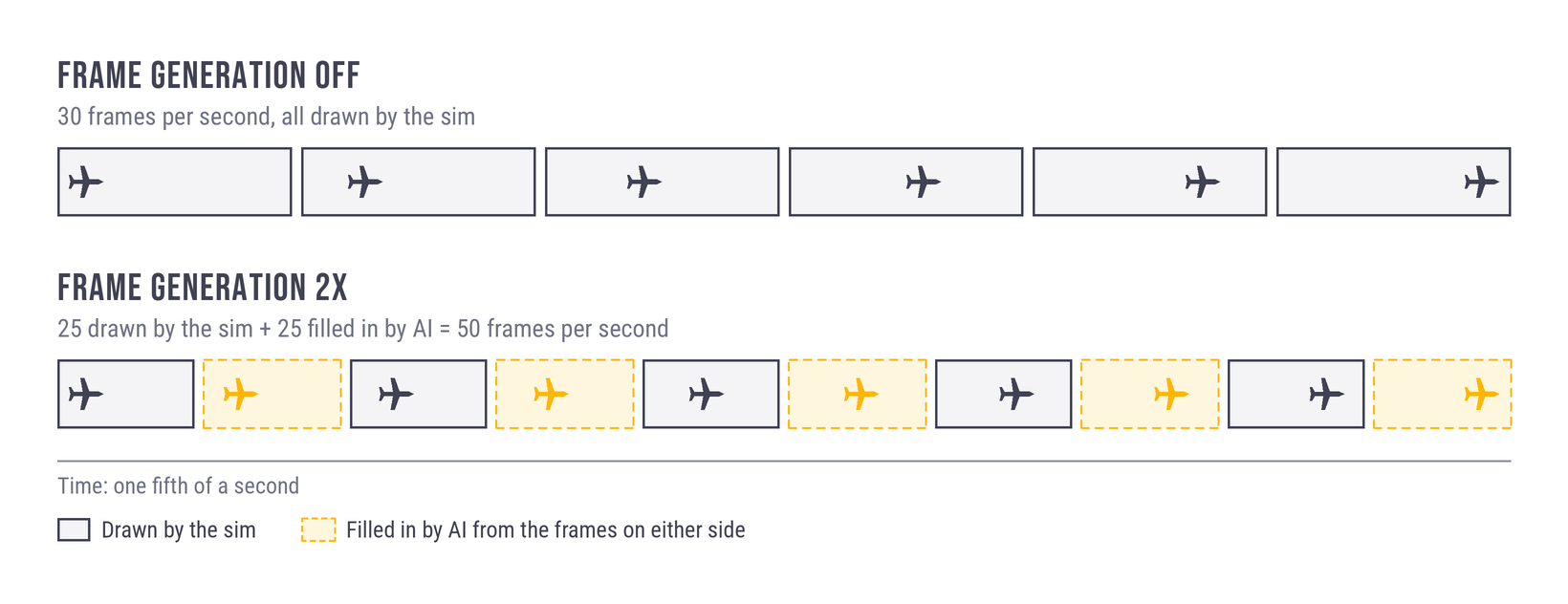
Frame generation can also add input lag: the delay between moving a control and seeing the response.
Why’s that? Extra images can make motion look smoother, but they do not make the sim actually calculate a new response to your controls each time. So 50 FPS with generated frames may not feel as responsive as 50 frames rendered by the sim.
Jordan considers that tradeoff less important in a flight simulator than in fast-paced shooting games, where a split-second delay can affect your aim.
Later in the report, we’ll cover Jordan’s recommendation for this specific sim.
Preview video
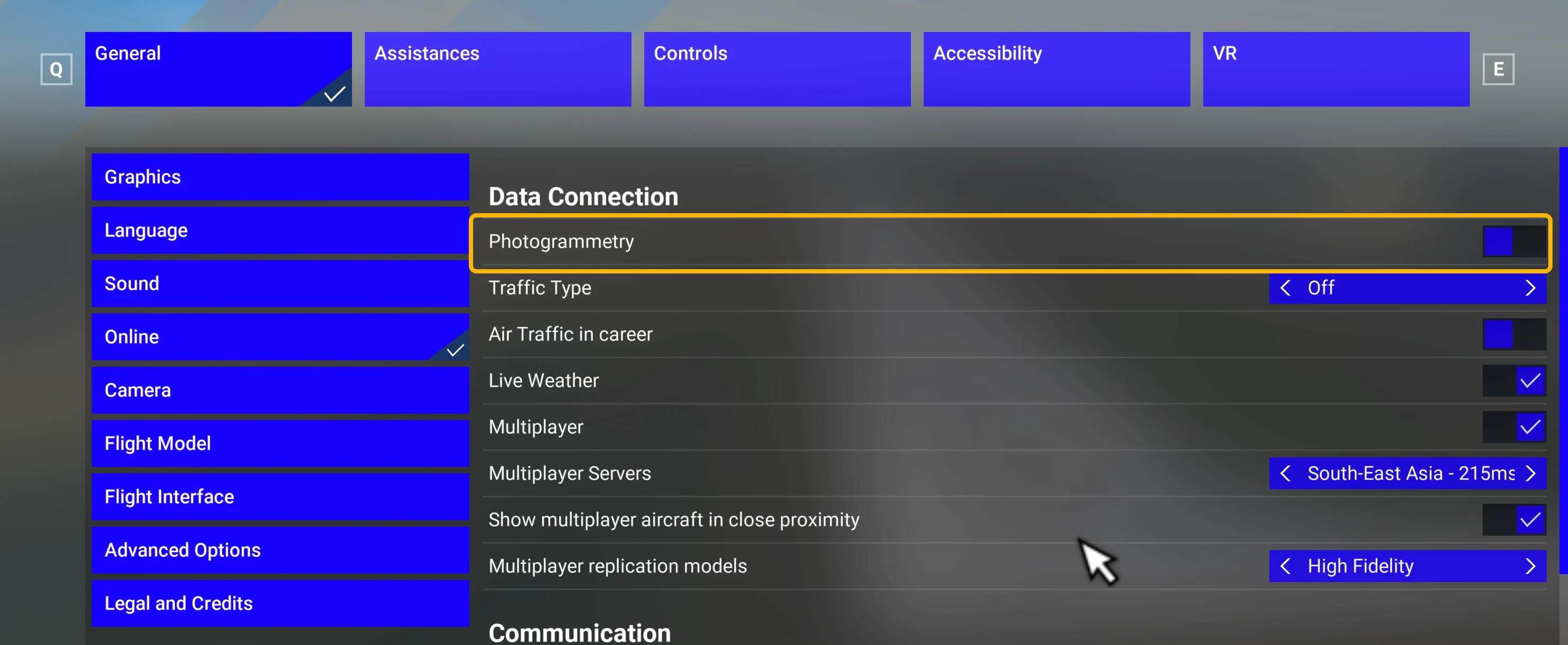
Coming up next, Jordan will also turn photogrammetry off and fly low to see how the scenery changed up close.
The full report explains what photogrammetry does and when it’s worth turning off.
Here’s a short clip of their test flight:
The full report continues in FSC Pro
Members get every session report — real lessons from real 1:1 coaching sessions — plus the full FSC Pro library.
Already a member? Continue reading in the portal →

Based on a real Flight Sim Coach coaching session, used with the client's consent. The client's name has been changed.


