

Graphics and control settings are not one-size-fits-all, and a setting that works on one machine can hurt on another. Menu names and the location of settings in flight sim software also move around between updates, so what you see on your screen may not match exactly. If you fly a different model in the sim than you do in real life, confirm specifics like speeds and systems against the documentation for your own airplane.
The Student
We’ll call the student in this session Dale. He came to flying later in life and trains in a Cirrus. He learned the basics years ago in a thirty-year-old Piper Archer with steam gauges. Then he started flying with a friend who owned a Cirrus and never looked back.
His real-world airplane is a Cirrus SR20 with the G1000-based Perspective Plus avionics.
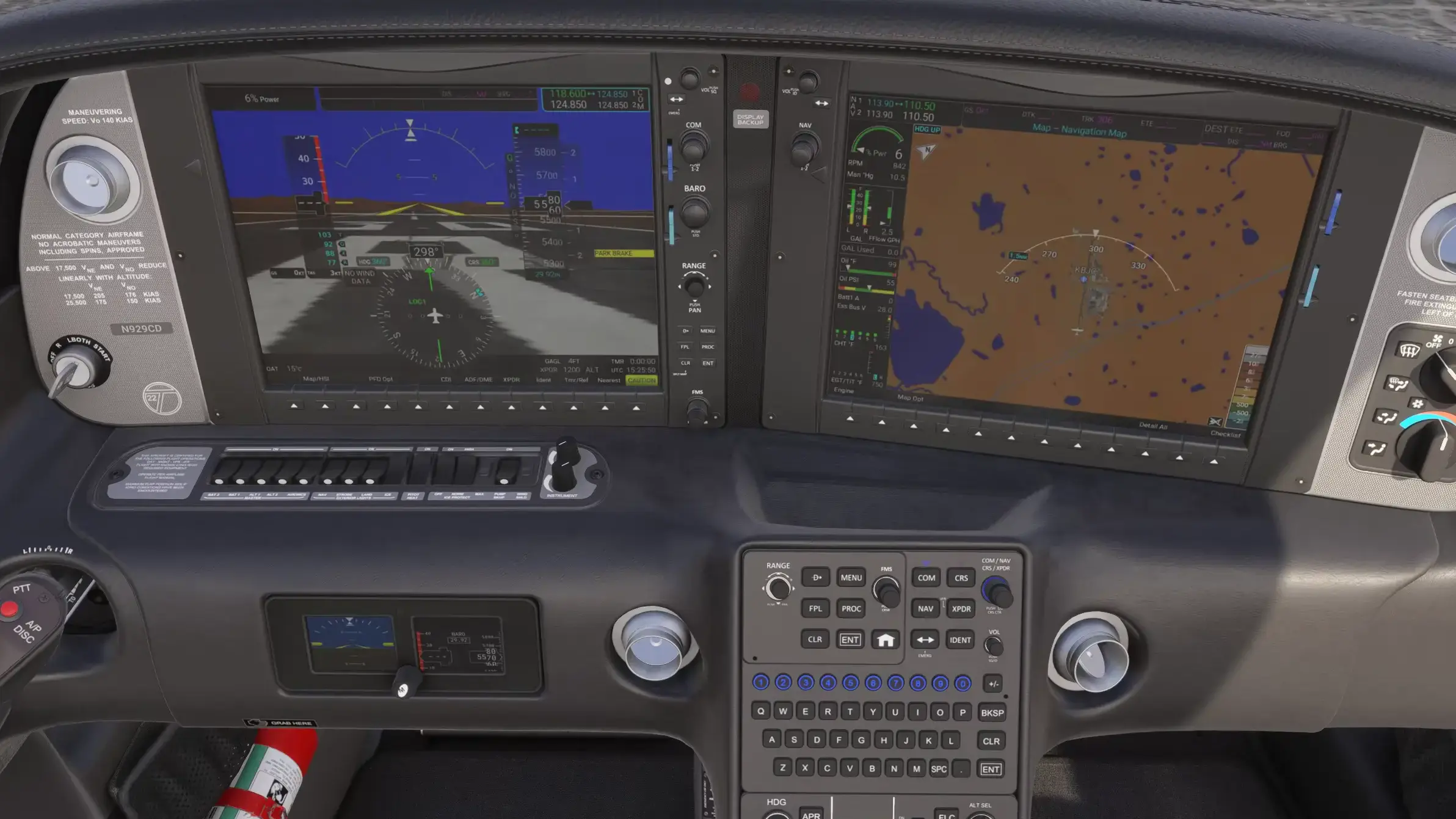
He couldn’t find an exact SR20 model for the sim, so he flies the SR22T instead, since it shares the flight deck layout and labeling. The two airframes differ under the cowling, though. The SR20 is normally aspirated and the SR22T is turbocharged, so climb power management is different.
He runs three monitors: a main display for the cockpit view and two side monitors that give him peripheral vision. Mostly that’s so he can see the runway as he turns base in the pattern.
He arrived with a short, practical list of specific problems to solve. A graphics card warning kept popping up, a Logitech panel refused to stay working after a restart, and he had questions about his monitors.
The Sim Tech
Working with Dale was Nick Marcantonio (CFI, CFII, MEI). Nick is an FAA flight instructor and an airline pilot. He has spent years setting up sims with gear from Logitech, RealSimGear, Honeycomb, and others. Sessions like this one, where the goal is to get a system clean, stable, and ready to fly, are squarely in his wheelhouse.
The Graphics Card Warning
Dale had a recurring message warning that his GPU was overloaded. Nick had already started looking at the graphics settings during his standard pass through the machine.
The cause was settings, not weak hardware.
The sim was set to the Ultra graphics preset, but frame generation was switched off. The sim was set to produce the highest-quality visuals while a chunk of the card’s advanced capability sat unused. So it tried to draw more than the hardware could deliver.
The fix had three parts:
turn frame generation on
step the preset down from Ultra to the high range
set the frame-rate limiter to a level the card and display can sustain (that way the card is no longer pushed to produce more frames than it or the display can use)
The overload warning stopped appearing, and Dale noticed the difference right away.
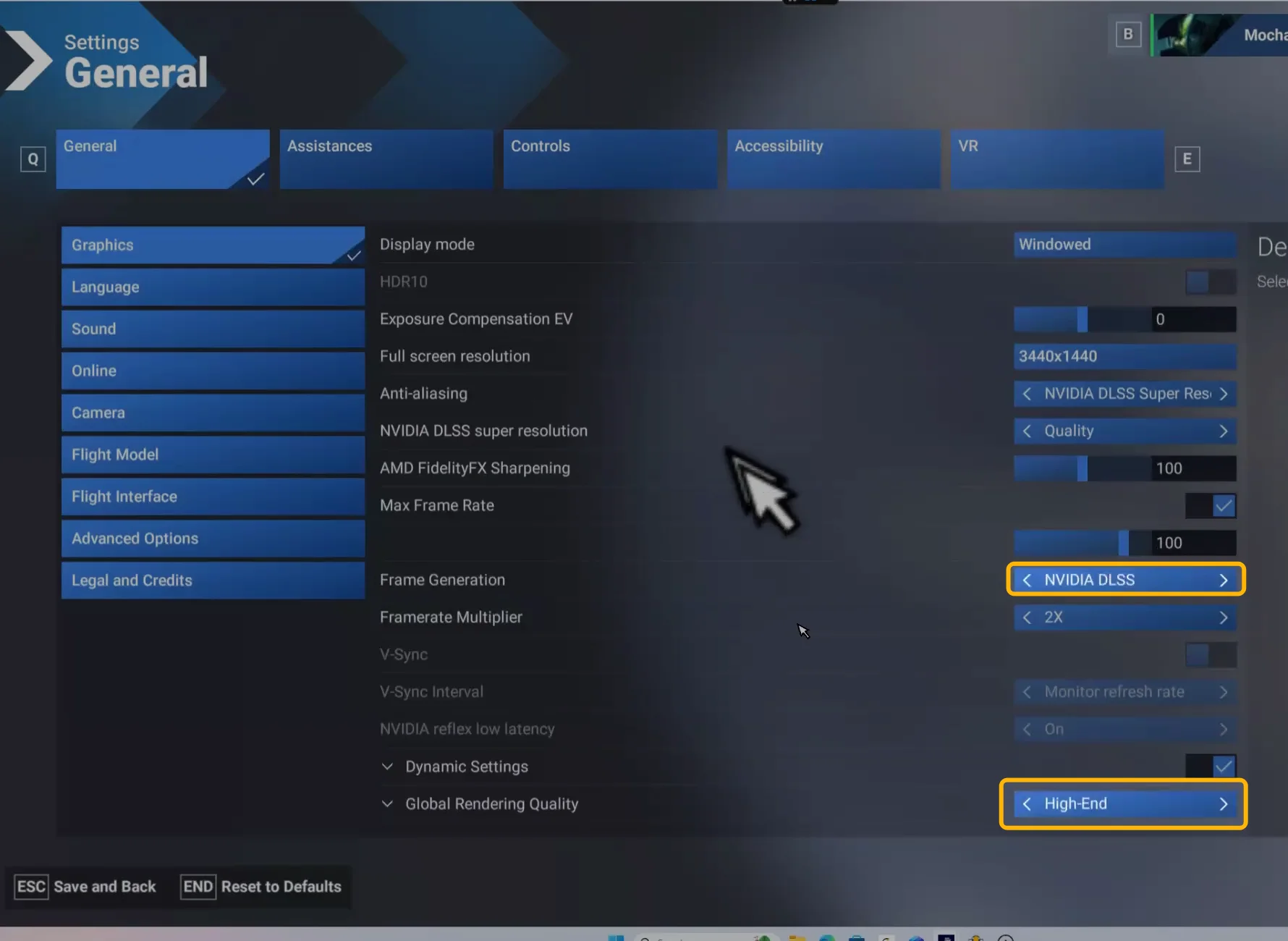
Frame generation adds extra, AI-generated frames between the ones the card actually renders. That can make motion look smoother, but a higher preset is not automatically better, since it can cause visual artifacts and latency.
The full report continues in FSC Pro
Members get every session report — real lessons from real 1:1 coaching sessions — plus the full FSC Pro library.
Already a member? Continue reading in the portal →

Based on a real Flight Sim Coach coaching session, used with the client's consent. The client's name has been changed.


